Phantom reboots following new software update installation

A word of caution….

Situation:

All servers in our a newly-formed environment required a first set of ‘baseline’ patches to bring them up to speed, after which we would set up a monthly patch update schedule.

Following this ‘inaugural’  deployment of around 380 patches. everything appeared on the face of things, to go smoothly. Machines all received updates and rebooted as expected. I could see from reports however that one or two patches had failed to install for some reason in this deployment. I figured that we could schedule in another time to try these again, maybe even the following month as none were actually deemed critical. In any case this was another conversation I needed to have with the application owners.

Two days later I got a call saying that a sizeable percentage of the server collection I had patched ‘randomly’ rebooted again at various times that morning. A significant amount of arm waving ensued and I was asked to look into it, especially as it was clear from the event logs that the reboot had been instigated by the CCMExec:

The process C:\Windows\CCM\CcmExec.exe (COMPNAMEXXX) has initiated the restart of computer COMPNAMEXXX on behalf of user NT AUTHORITY\SYSTEM for the following reason: No title for this reason could be found
Reason Code: 0x80020001
Shutdown Type: restart
Comment: Your computer will restart at 08/14/2015 09:58:37 AM to complete the installation of applications and software updates

I frantically checked all deployments and confirmed there was absolutely no deployments due and everything had basically gone out as expected. In fact nobody had even touched the console that morning.  Further digging revealed the following in the logs of affected machines:

Log Name: System
Source: Microsoft-Windows-WindowsUpdateClient
Date: 12/08/2015 17:24:00
Event ID: 20
Task Category: Windows Update Agent
Level: Error
Keywords: Failure,Installation
User: SYSTEM
Computer: COMPNAMEXXX.domain.local
Description:
Installation Failure: Windows failed to install the following update with error 0x80092004: Update for Windows Server 2008 R2 x64 Edition (KB3045645).

Then, later on:

Log Name: System
Source: Microsoft-Windows-WindowsUpdateClient
Date: 14/08/2015 10:02:43
Event ID: 19
Task Category: Windows Update Agent
Level: Information
Keywords: Success,Installation
User: SYSTEM
Computer: COMPNAMEXXX.domain.local
Description:
Installation Successful: Windows successfully installed the following update: Update for Windows Server 2008 R2 x64 Edition (KB3045645)

Similar entries appeared for several of the failed updates. Clearly what had happened is that another software update scan cycle had taken place and detected that the machine was missing several important updates, specifically those that had failed previously. The updates were then automatically re-tried and successfully installed the second time round. Presumably they needed a reboot before they would install correctly although I have read plenty to suggest this shouldn’t happen. Regardless, the second successful installation instigated our phantom reboots.

My recommendation here would be to ensure you have a dedicated Maintenance Window to alleviate this headache. There were one or two that picked these updates up and installed them after my discovery and the Maintenance Window prevented the reboot from occurring. Obviously it won’t be properly patched until the client has been restarted but that can at least be left to the application owner to decide on a suitable time to do this.

ADR Gotcha – ADR only fires from the site server

Very short and (not so) sweet post with a word of warning on ADRs.

CM2012 SP1 R2

I wanted to set up and Automatic Deployment Rule to select a bunch of updates and automatically download and set up my Software Update Group. In my client’s environment the only box with internet access belongs to the SUP. Unfortunately, if you want your ADR to carry out the tasks above then you will need to ensure your Primary Site Server has access to the internet as well.

An ADR will always fire from the Primary Site Server and without internet access, the ADR will fail to download any updates.

You’ve been warned!

The self-signed certificate could not be created successfully

Cert
This is an issue that can occur in any situation where a site system role requires a certificate. I have seen it happen when creating a new Management Point or creating a new PXE service point. In the situations I have been in, I find this tends to be profile-related so check that you’re logged on with a ‘proper’ profile, ie not temp, etc.
Assuming this is the case, follow the steps below.
THE FIX
1. Go to C:\Users\<USER ACCOUNT>\AppData\Roaming\Microsoft\Crypto\RSA\<GUID>
2. Delete GUID files within.
3. I restart SMSAgent Host (maybe required)
4. Try again. The GUID files will automatically be recreated and you should be able to proceed with the cert creation.


Can’t run PowershellInstance.invoke() from C# (but code is fine)

I recently wrote a GUI to duplicate MDT database roles based on the excellent Powershell commandlets written by Michael Niehaus:
http://blogs.technet.com/b/mniehaus/archive/2009/05/15/manipulating-the-microsoft-deployment-toolkit-database-using-powershell.aspx.
Although the Powershell code worked fine when executed directly in a Powershell window, I was seeing mixed results when executing the same code in C# through PowershellInstance.invoke(). Specifically, when I compiled the executable I was able to run the powershell code through the utility without issue, whereas it failed for my colleagues for some reason.

THE FIX

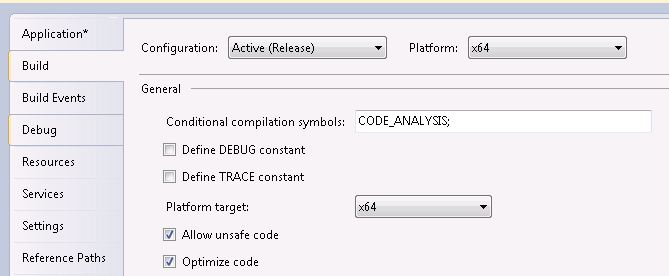
It seems that what I needed to do was ensure that the code was compiled specifically for the platform I was running it on as opposed to ‘any CPU’. In my case this was for x64. You can set this under the project properties in Visual Studio:

Platformx64

However, after making this change, I found I was getting compilation errors along the lines of:
An attempt was made to load an assembly with an incorrect format: [path to exe]

To fix this, I needed to change Generate serialization assemply to Off and everything compiled as expected. More on this here.

Configuration Manager did not find a site to manage this client

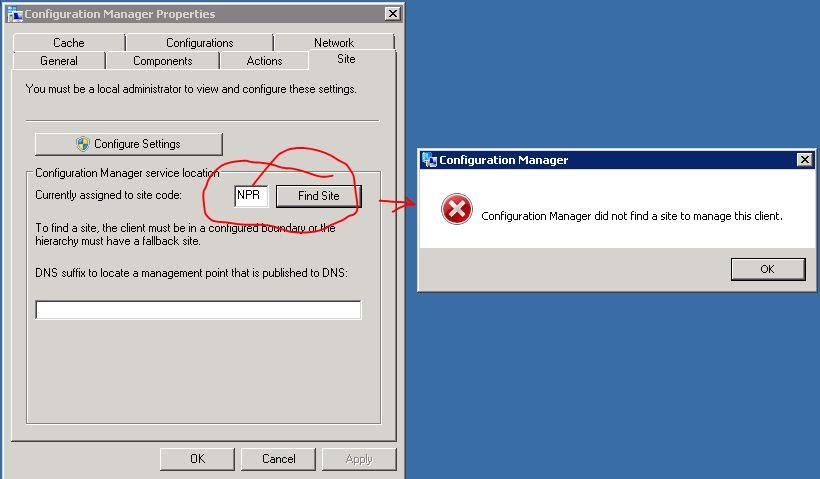
Configuration Manager did not find a site to manage this client(click image to enlarge)

Just had this issue which was somewhat perplexing because normally when you get an error like this you tend to find there are missing tabs and maybe a missing site code. The location services log file was saying that there was no information being returned from the MP, yet  as you can see from the image above everything looked otherwise intact.
 
RESOLUTION
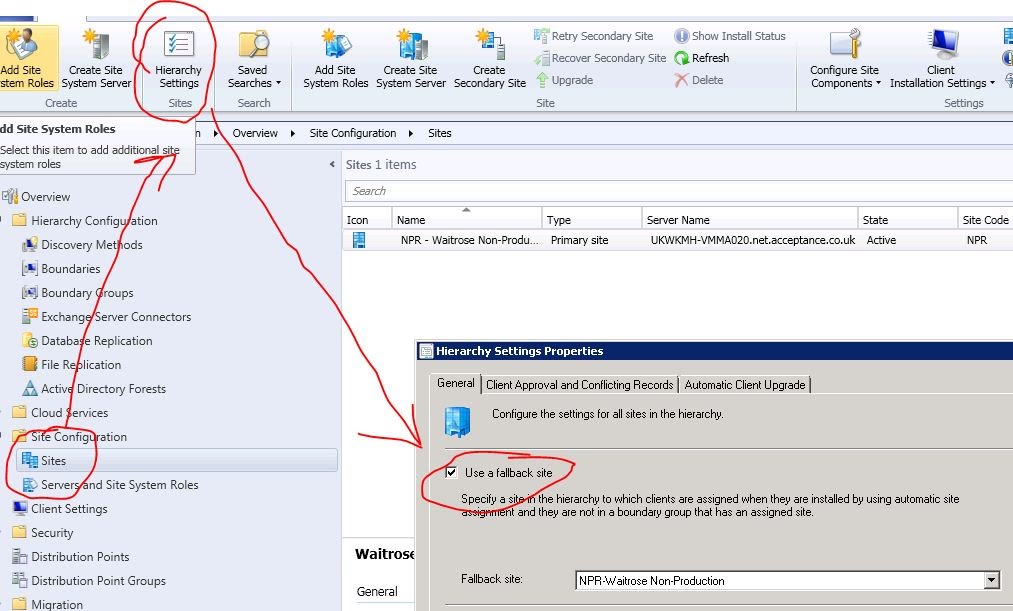
When the client was installed, a Fallback Status Point was specified. A Fallback Status Point was installed on the primary site but it transpires that this isn’t enabled by default (at least it wasn’t in our case). Once this was enabled everything began working again:
HierarchySettings
(click image to enlarge)


New-CMBoundary IPSubnet Doesn’t work

CM2012 introduces to us the ability to easily script many labour-intensive tasks. I was recently adding numerous boundaries to a ConfigMgr implementation for a client so decided the best approach was to automate this procedure.  I fired up the Powershell session from within ConfigMgr and checked the syntax for New-CMBoundary. Now, I had a spreadsheet with a bunch of IP subnets in CIDR notation so it made sense to use this for my script. Running Get-Help New-CMBoundary I got the following:

Example 1: Create a new IP Subnet site boundary
PS C:\>New-CMBoundary -DisplayName "IPSubNetBoundary01" -BoundaryType IPSubNet -Value "172.16.50.0/24"
BoundaryFlags: 0
BoundaryID: 6338009
BoundaryType: 0
CreatedBy: Contoso\PFuller
CreatedOn 6/10/2012 1:17:42 PM
DefaultSiteCode:
DisplayName: IPSubNetBoundary01
GroupCount: 0
ModifiedBy:
ModifiedOn:
SiteSystems:
Value: 172.16.50.0/24

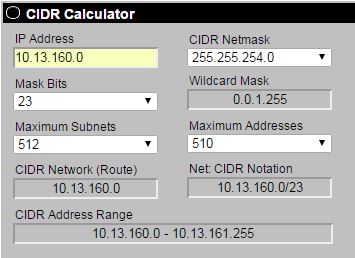
Looks straightforward enough but no. This simply doesn’t work as stated. The problem seems to be that it doesn’t understand the ‘/24’ part (in this example). Instead, what you first need to do is to find the subnet ID which is associated with your address. If you’re unsure what this is then I’d recommend you use something like http://www.subnet-calculator.com/cidr.php:

cidrcalc


In the example above we have a CIDR range of 10.13.160.0/23. You can see from the calculator that this produces a network ID of 10.13.160.0. Therefore the correct syntax for New-CMBoundary is as follows:
New-CMBoundary -DisplayName “IPSubNetBoundary01” -BoundaryType IPSubNet -Value “10.13.160.0”
All that said, I’d personally avoid IPSubnet boundaries completely. Instead, just go for a range, far simpler to understand. The CIDR calculator is again helpful for this and displays the range at the bottom.
Thankfully, the IPRange syntax is correct so you shouldn’t have any issues.


Failed to create assembly name object for Microsoft.UpdateServices.Administration Error = 0x80131701

I recently upgraded to ConfigMgr 2012 R2 SP1 for a client and started seeing the above error appearing in both the WCM.log file and the WSUSCTRL.log files. I could find nothing on the internet about this so eventually I bit the bullet and phoned Microsoft support. Synopsis below:

ISSUE

Failed to create assembly name object for Microsoft.UpdateServices.Administration Error = 0x80131701 in WSUSCtrl.log

In our Environment:

WSUS server is on a separate VM to the CM2012 Site Server and WSUS database (SQL 2012) is on a separate VM from both CM2012 DB and from the WSUS server.

On WSUS Server we periodically see the following message in the D:\SMS\Logs\WSUSCtrl.log:

Failed to create assembly name object for Microsoft.UpdateServices.Administration. Error = 0x80131701.

This message appears approximately every 30 minutes in the D:\SMS\Logs\WSUSCtrl.log and it also appears every hour in “D:\Program Files\Microsoft Configuration Manager\Logs\WCM.log“.

As per Logs
 WCM.Log
 7/23/2015 3:01:35 PM Checking for supported version of WSUS (min WSUS 3.0 SP2 + KB2720211 + KB2734608) SMS_WSUS_CONFIGURATION_MANAGER 4408 (0x1138)
 7/23/2015 3:01:35 PM Checking runtime v2.0.50727... SMS_WSUS_CONFIGURATION_MANAGER 4408 (0x1138)
 7/23/2015 3:01:35 PM Failed to create assembly name object for Microsoft.UpdateServices.Administration. Error = 0x80131701. SMS_WSUS_CONFIGURATION_MANAGER 4408 (0x1138)
 7/23/2015 3:01:35 PM Checking runtime v4.0.30319... SMS_WSUS_CONFIGURATION_MANAGER 4408 (0x1138)
 7/23/2015 3:01:35 PM Found supported assembly Microsoft.UpdateServices.Administration version 3.1.6001.1, file version 3.1.7600.256 SMS_WSUS_CONFIGURATION_MANAGER 4408 (0x1138)
 7/23/2015 3:01:35 PM Found supported assembly Microsoft.UpdateServices.BaseApi version 3.1.6001.1, file version 3.1.7600.256 SMS_WSUS_CONFIGURATION_MANAGER 4408 (0x1138)
 7/23/2015 3:01:35 PM Supported WSUS version found SMS_WSUS_CONFIGURATION_MANAGER 4408 (0x1138)
WSUSCTRL.Log
 7/23/2015 3:01:36 PM WSUS registry key change notification triggered. SMS_WSUS_CONTROL_MANAGER 420 (0x01A4)
 7/23/2015 3:01:36 PM Checking for supported version of WSUS (min WSUS 3.0 SP2 + KB2720211 + KB2734608) SMS_WSUS_CONTROL_MANAGER 420 (0x01A4)
 7/23/2015 3:01:36 PM Checking runtime v2.0.50727... SMS_WSUS_CONTROL_MANAGER 420 (0x01A4)
 7/23/2015 3:01:36 PM Failed to create assembly name object for Microsoft.UpdateServices.Administration. Error = 0x80131701. SMS_WSUS_CONTROL_MANAGER 420 (0x01A4)
 7/23/2015 3:01:36 PM Checking runtime v4.0.30319... SMS_WSUS_CONTROL_MANAGER 420 (0x01A4)
 7/23/2015 3:01:36 PM Found supported assembly Microsoft.UpdateServices.Administration version 3.1.6001.1, file version 3.1.7600.256 SMS_WSUS_CONTROL_MANAGER 420 (0x01A4)
 7/23/2015 3:01:36 PM Found supported assembly Microsoft.UpdateServices.BaseApi version 3.1.6001.1, file version 3.1.7600.256 SMS_WSUS_CONTROL_MANAGER 420 (0x01A4)

It used to work in CM12 R2 Issue started post upgrading to CM12 R2 SP1.

____________________________________________________________

RESOLUTION

The bad news is that unfortunately, there isn’t one. The good news is that this error doesn’t (or shouldn’t) actually affect anything and you can safely leave it logging every 30 mins to an hour (depending on the log you look at).

The official line on this is that it is a known bug in the code and will not be fixed until the next release of ConfigManger (2016), so no hotfix planned. I’m afraid we’ll just have to live with it.


“There is no task sequence available for this computer” error, SCCM OSD

I was recently contracted to do a project for a large retailer which involved upgrading all their POS devices to POSReady 2009 (I know this is 2013, don’t get me started on that one!). Anyway everything was going swimmingly until I started on the scale devices. In fact I hit a number of issues here which made things very difficult for deployment via SCCM, some of which may be addressed in further posts but I’ll try to keep things simple and just concentrate on one issue per article.

By and large, creating new task sequences and MDT roles for new devices is relatively formulaic and with a few small updates to the role and the task sequence OS image my new scale build was pretty much ready to rock ‘n’ roll. The MDT role had been selected and SCCM was figuring out what it had to do but instead of the machine progressing and starting the task sequence, it would simply reboot. Now I’m not foolish enough to think things will work like clockwork first time round, but after retrying it this began to irritate me. Looking at the local BDD.log file it said:
“There is no task sequence available for this computer”.
I went back to check the MDT role and make sure I’d put in the correct advertisement ID, task sequence (program) ID, etc and it was all bang on the money so what was wrong?

Well the good news for those of you reading this looking for the answer is that I have two solutions to the problem. The bad news is that you’d probably rather not do any of them. Unfortunately you have no choice.

THE REASON

This happens because SCCM uses the SMBIOS GUID as the primary means to determining device uniqueness, over and above the MAC address. Network cards can after all be swapped around fairly easily. The SMBIOS GUID is determined by the hardware GUID of the device and, unfortunately there are plenty of OEMs out there that don’t care much for their hardware GUID actually being unique (bit of a contradiction in terms, I know). In my case the GUID was basically a bunch of zeros followed by 0807060504030201. Now, if I had no other devices on the network with this GUID, then the task sequence would have run fine. However if you do have other devices out there with that GUID and they are not in the collection you have advertised the task sequence to and SCCM picks them before it picks the device you wish to build, then it quite rightly says there is no task sequence available for the computer. This isn’t a problem with SCCM, this really is an OEM problem. But that doesn’t help you right now.

THE FIXES

I’ll start with the runaway recommended fix:

1.  Contact the OEM, ask them to provide you with a BIOS update that will update the GUID appropriately and roll it out to all affected devices. I appreciate this is time consuming and costly but it really is the best way of doing things.

2. There is a back-door workaround which involves updating a couple of stored procedures in the SCCM database that will make SCCM look at the MAC address instead of the SMBIOS GUID. Although Microsoft will unofficially give you this solution, they won’t support it if everything goes tits up. I have yet to hear of anyone who has had an issue but depending on your environment, it could be a problem. It’s your call. As such it is best not to test it first in your production environment if possible. And make sure you have logged the requisite change to cover yourself!

That said, the update is fairly simple.

On the SQL server hosting the ConfigMgr database, open SQL Server Management Studio and modify the following stored procedures:
1.        NBS_LookupDevice
• Change the line
On xref.machineid = aux.itemkey and aux.smbios_guid0 = @smsbios_guid
to
On xref.machineid = aux.itemkey and aux.smbios_guid0 = @smsbios_guid + ‘.’
2. MP_GetClientIDFromSmbiosID
• Change the line
Where (m.smbios_guid0 = @vchsmbiosid) and (isnull(m.obsolete0,0) != 1)
to
Where (m.smbios_guid0 = @vchsmbiosid + ‘.’) and (isnull(m.obsolete0,0) != 1)
Change the line
Where (upper(m.smbios_guid0) = upper(@vchsmbiosid)) and (isnull(m.obsolete0,0) != 1)
to
Where (upper(m.smbios_guid0) = upper(@vchsmbiosid + ‘.’)) and (isnull(m.obsolete0,0) != 1)

As I said this not officially supported by Microsoft but the solution did come from them, so make of that what you will. Equally I take no responsibility either, try this at your own risk. The recommended fix is no. 1.

Enjoy.

Running two (or more) networks from a Thomson Gateway (TG585 v8) router

A key requistite in running a successful home-lab setup is to get at least a couple of separate networks connected together. This will create a more realistic ‘work-like’ environment to test any server configuation you have.
Personally I have a bit of a mish-mash of routers and switches to do this with and although I knew the theory of how this should work, I did struggle slightly getting the Thomson to forward packets like it should do. I put this down to the version I have (v8) and any documentation I could find was all v.7.
My other router is a MikroTik RouterBoard and I highly recommend investing in one of these if you’re serious about routing. They’re cheap (sub £50) but offer everything you’d expect on a professional router. Everything. In all honesty, most of the stuff this router will do I’ll never need nor indeed, understand. But if you’re looking for another router for this kind of lab setup, I can’t recommend it highly enough.
Anyway, my goal was to set up my network similar to that below:

network

Having plugged the WAN interface of my routerboard into the Thomson, I was immediately able to access the 192.168.0.x network and hence, the internet. Great. However going back the other way wasn’t so pretty. “hmmm…looks like I need a static route set on the Thomson router” I thought. However there appeared to be no way of configuring this from the router interface. After a bit of digging, I discovered I was able to telnet to the router and set it that way. I found this link which led me in the right direction:
http://networkoz.blogspot.co.uk/2012/10/add-routing-in-thomson-tg585-v7.html#!/2012/10/add-routing-in-thomson-tg585-v7.html
However I was still unable to contact the 88.x network from the 0.x network. Turns out the problem I was having was that the gateway I added was actually incorrect:
ip rtadd dst=192.168.88.0/24 gateway=192.168.88.1 intf=LocalNetwork srcintf=LocalNetwork static=enabled

So what had I done wrong? Well the gateway should actually be the interface on the 0.x network. What was happening is that the Thomson router was providing a dynamic address to the WAN port of the routerboard, and it was this address I should have been providing as the gateway address. In my case this was 192.168.0.64, so the command line should actually have been the following:

ip rtadd dst=192.168.88.0/24 gateway=192.168.0.64 intf=LocalNetwork srcintf=LocalNetwork static=enabled

Obviously you should really make sure this address is static but this address won’t change in my configuration so it’s fine. My routing problem was then solved.

Some resources that helped me solve this problem (and one or two others)
List of telnet commands on Thomson Router
http://npr.me.uk/telnet.html
Set up DHCP configuration via telnet on a Thomson Router (not directly relevant, but helped me out elsewhere)
http://www.jpdw.org/tg585/dhcp-configuration

Unable to access DFS shares in Windows 7 (drives not mapping)

There could of course be plenty of reasons you’re experiencing this behaviour but I’ll zoom in on two which I’ve noticed are particularly prevalent with Windows 7 and which may not be immediately obvious.

Server Message Block Signing

The first time I saw this behaviour, it was after I’d introduced a hardened-build policy (yes the very same Win7-EC-Desktop baseline policy I refer to in an earlier post). The problem is to do with the Server Message Block Signing policy. There are two fixes – either update the servers holding your DFS shares to acknowledge the policy so Windows 7 can talk to them securely or simply disable the policy on the Windows 7 clients. The first is preferable, the second solution is easier, your choice.

SMB

Change group policy to reflect the settings in the image and you should be fine. Obviously this is the easier, second option!

Token Size

Assuming this has been ruled out, the second, possibly less obvious reason for failure to connect to DFS shares is user token size. For those unfamiliar with token size, it basically relates to the size of the security ‘token’ you are issued with when you log onto a computer in a domain. This token is responsible for security assessment throughout your logon session. As more groups are added to your user account the token size increases. If you were to add a group that has another hundred groups nested in it, then your token size will increase accordingly!

Although this was a problem with Windows XP, it was generally more forgiving than in Windows 7/8 and for this reason you are more likely to notice the problem if you have recently upgraded. To confirm the issue, you are likely to see a message in the ‘system’ log in event viewer like the one below:

TokenSize

Again there are two choices you can make here. Firstly, you can increase the token size available for domain accounts in group policy. This, in my opinion, is the sensible way to fix the issue if you aren’t able to do much about the group sizes. The second, easier option is to remove groups you can do without until the token size is back to a respectable level. If this proves to be a slightly easier choice for you then you might require multiple accounts, eg one with admin groups to do privileged operations and another which lets you do day to day stuff. You can always use the run as… feature to save you logging off/on all the time.


Headaches of an SCCM Admin.